Free COI Tracking Spreadsheet Template (Excel + Google Sheets)
Stop tracking vendor COIs in a messy spreadsheet. Download our free, pre-built COI tracking template for Excel and Google Sheets, with automatic expiration warnings and color-coded compliance status.
Why Use a COI Tracking Spreadsheet?
If you manage vendors for a commercial property, construction project, or facilities operation, you already know the headache: COIs come in as PDFs, someone types the data into a spreadsheet, and over time, that spreadsheet becomes a mess, duplicate tabs, missing dates, and version-control chaos.
A purpose-built COI tracking spreadsheet solves the immediate problem. It gives you a structured, reusable template with all the right columns, pre-built formulas, and color-coded compliance status. Instead of building one from scratch every time, you download this template and start entering data in minutes.
This spreadsheet works best for small teams tracking 5-10 vendors. It's free, simple, and gets you organized immediately. No software to learn, no accounts to create, just a spreadsheet that works in both Excel and Google Sheets.
A quick note: If you're tracking more than 10 vendors, a spreadsheet may start to slow you down. Manual data entry, scattered files, and unowned reminders add up. COI File starts with a 7-day free trial on all plans. Base includes AI extraction, automatic email alerts, and a vendor upload portal.
What's Included in This Template
Here's exactly what you get when you download the COI tracking spreadsheet:
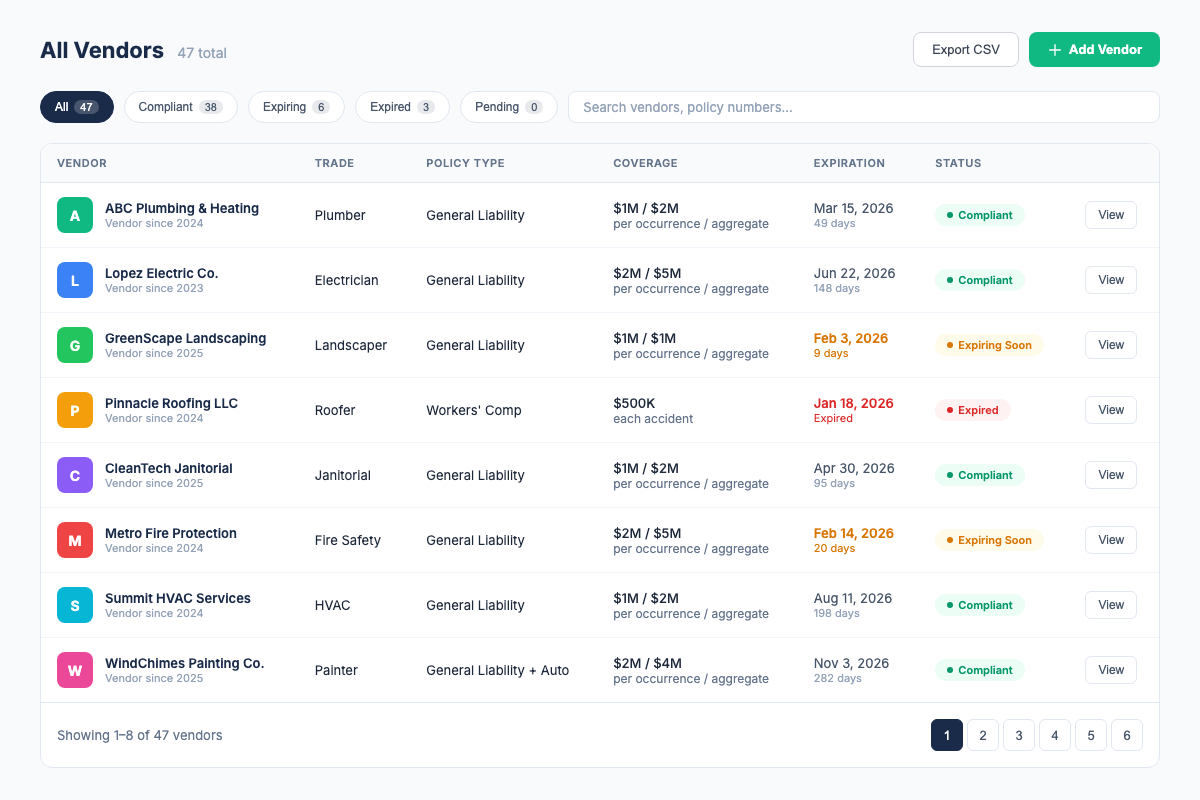
- Pre-built column headers: Vendor name, contact email, phone, insurance type, policy number, coverage limits (per occurrence / aggregate), effective date, expiration date, additional insured (yes/no), waiver of subrogation (yes/no), compliance status (auto-calculated), and notes.
- Color-coded compliance status: Green for compliant (active, >30 days until expiration), yellow for expiring within 30 days, red for expired or non-compliant. Conditional formatting rules are built in, they update automatically as dates change.
- Automatic expiration warnings: Pre-built formulas calculate days until expiration and flag certificates that expire within 30, 60, or 90 days. You can adjust the thresholds in the conditional formatting rules.
- Separate tabs for organization: The template includes multiple tabs so you can track vendors across different properties, projects, or job sites, without mixing data together.
- Sort and filter ready: Sort vendors by expiration date (upcoming first), insurance type, or compliance status. Filter to see only expired certificates, only general liability policies, or only vendors for a specific property.
How to Use This Template
Getting started takes about 10 minutes. Here's the step-by-step:
- Download the template. Fill out the form below and we'll send the Excel and Google Sheets versions to your inbox. Both are included.
- Add your vendors. Start by listing every vendor that provides services at your property or project. Include their name and contact information so you know who to reach out to when certificates expire.
- Enter policy details from each COI. For each vendor, pull out the insurance type, policy number, coverage limits, effective date, and expiration date from their COI. Check whether your organization is listed as additional insured and whether a waiver of subrogation is included, both are critical for your protection.
- Let the template do the work. As you enter expiration dates, the spreadsheet automatically calculates days until expiration and applies the color-coded compliance status. No manual highlighting, no calendar math.
- Update when vendors renew. When a vendor sends a renewed certificate, update the row with the new policy number and dates. The compliance status recalculates automatically. Run a quick check every Friday to catch any certificates that slipped into yellow or red.
Pro tip: If your team shares the spreadsheet, use Google Sheets to avoid version-control problems. Multiple people editing different local copies of an Excel file is a recipe for confusion. With Google Sheets, everyone works from the same version and changes are visible in real time.
The Limits of Spreadsheet Tracking
We built this template to be the best free COI tracking spreadsheet available. But let's be honest about what a spreadsheet can, and can't, do:
- No automatic alerts to vendors. The spreadsheet tells you when a certificate is expiring, but it doesn't notify the vendor. You still have to send the email yourself, which, for 10+ vendors, becomes a recurring time sink.
- No AI extraction, it's all manual data entry. Every time a vendor sends a COI, you have to open the PDF, find each data point, and type it into the spreadsheet. For a single certificate, that's 5-10 minutes. For 20 certificates a month, that's 2-4 hours of typing.
- No vendor portal. Vendors email you their COIs, you download them, you type the data. There's no way for vendors to upload directly into the system. The "email chase", where you follow up three times to get a renewal, still falls on you.
- Version control issues when shared. Even with Google Sheets, multiple people adding, editing, and sorting rows creates inconsistencies. Someone accidentally deletes a column. Someone forgets to update a date. Over time, you don't know which version is authoritative.
- Doesn't scale beyond 10-15 vendors. The spreadsheet is designed for small teams. At 15+ vendors, the scrolling, filtering, and manual entry become a part-time job, and that's before anyone audits you.
- No audit trail. If a claim happens and you need to prove a vendor was compliant on a specific date, a spreadsheet doesn't give you the version history or document storage you need. You're left digging through email attachments.
None of this means the spreadsheet isn't useful, it is, for the right situation. But it's a ladder, not a roof. When you outgrow it, you'll know.
When to Switch from Spreadsheet to Software
Here are the signs that it's time to move from a spreadsheet to dedicated COI tracking software:
- You're tracking 10 or more vendors, the spreadsheet starts feeling like a second job.
- You spend 2+ hours per week on COI administration, data entry, follow-up emails, and spreadsheet maintenance.
- You've ever had a certificate lapse without noticing, a vendor worked on your property while uninsured and you didn't catch it until later.
- Preparing for an audit takes more than 30 minutes, you're scrambling through emails and spreadsheet tabs to prove compliance.
- Multiple people need to access and update the same data, and version control has become a recurring problem.
- You're tired of chasing vendors by email and want them to upload their own certificates through a portal.
If two or more of these apply to you, it's time to consider COI tracking software. Read our complete guide to COI tracking or see how spreadsheets compare to software on our spreadsheet vs. software comparison page.
COI File is 7-day free trial on all plans, cancel anytime, so you can try it alongside this spreadsheet and see the difference for yourself. Start free today.
Fill out the form below to get the free template sent to your inbox. You'll receive both the Excel and Google Sheets versions, with pre-built formulas, color-coded compliance status, and automatic expiration warnings.
COI Tracking Best Practices from Industry Sources
- ACORD, Official ACORD certificate forms and standards. acord.org
- IRMI, Certificate of insurance management best practices and expert guidance. irmi.com
- OSHA, Workplace safety regulations that drive contractor insurance requirements. osha.gov
Frequently Asked Questions
Related Resources
- COI Tracking: The Complete Guide, everything you need to know about tracking vendor certificates of insurance
- Best COI Tracking Software, compare the top tools, features, and pricing
- Spreadsheet vs. COI Tracking Software, a detailed comparison so you know when to upgrade
- COI Tracking for Property Managers, how PMs manage vendor compliance across their portfolio
- COI Tracking for General Contractors, how GCs track subcontractor insurance on job sites
Download This Free Template
Enter your email below and we'll send the download link straight to your inbox. No spam. We'll also send you COI tracking tips and updates.
7-day free trial • Cancel anytime. Unsubscribe anytime.
Firdaosh Bano
COI Compliance Specialist
Firdaosh Bano is a COI compliance specialist and the founder of COI File. She spent 6 years managing vendor compliance for commercial properties - tracking 2,000+ COIs across 150+ properties in spreadsheets before building the tool she wished she'd had. She writes about certificate of insurance compliance, vendor risk management, and making insurance tracking less painful for small teams.